
Rewrite your queries while looking at your worksheet.
Excel's built-in Power Query Editor blocks the worksheet while it is open. Inline-Query-Editor runs next to Excel and lets you view, edit and refresh the M code and the Data Model (Power Pivot) measures (DAX) of the workbook you have open.
Free. Requires Windows 10 / 11 and Excel for desktop. The user interface is in Japanese only.
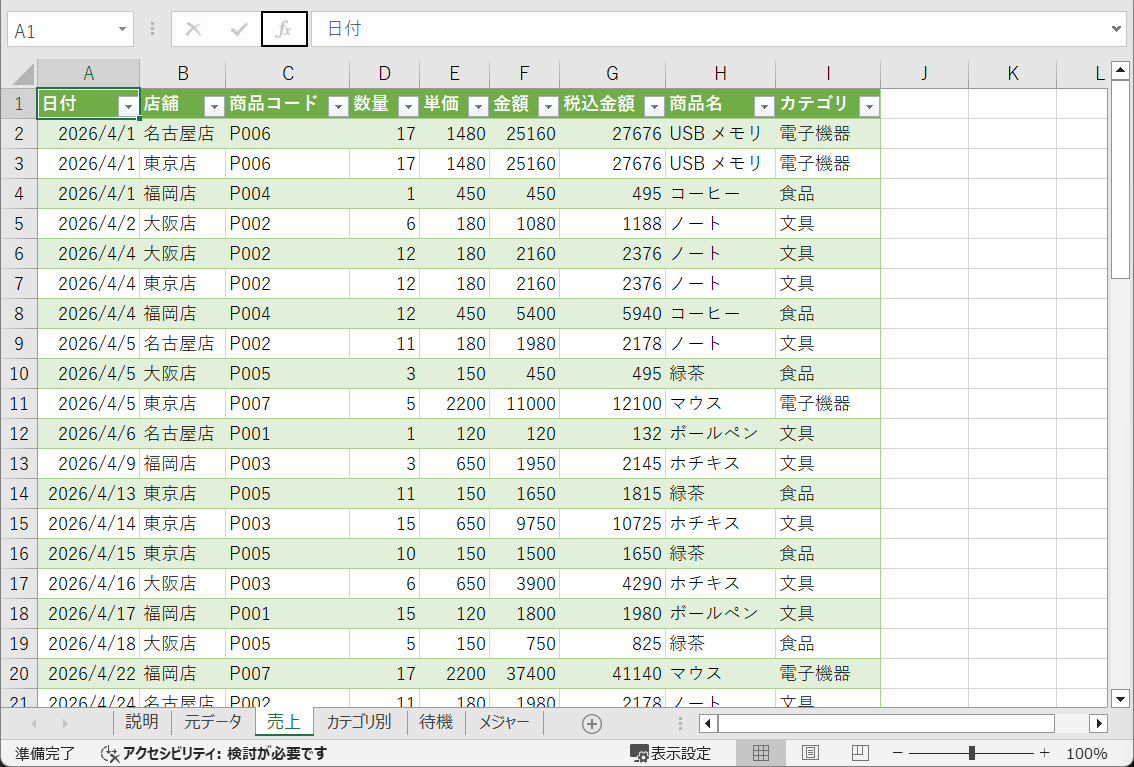
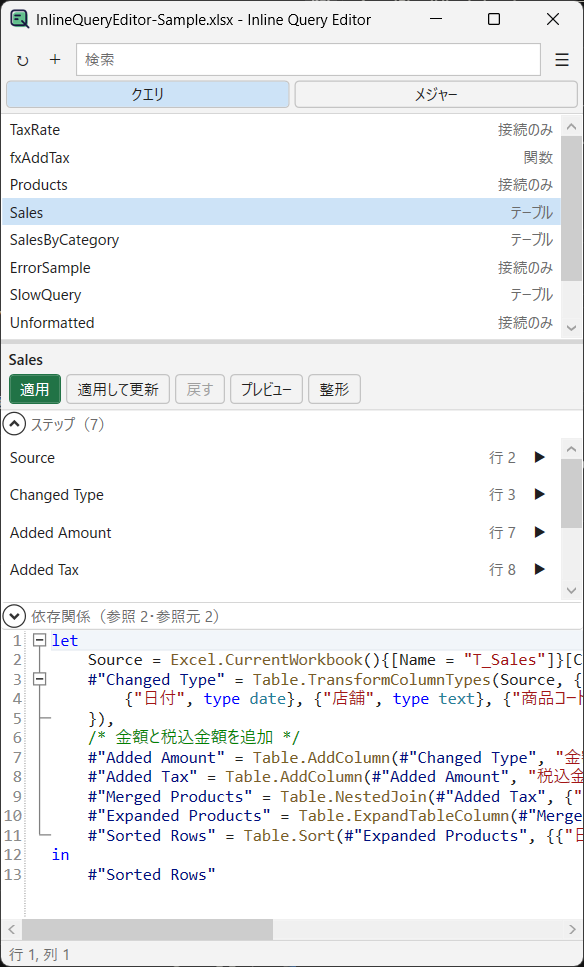
What it does
Check, fix, refresh and verify your queries and measures without taking your eyes off the worksheet.
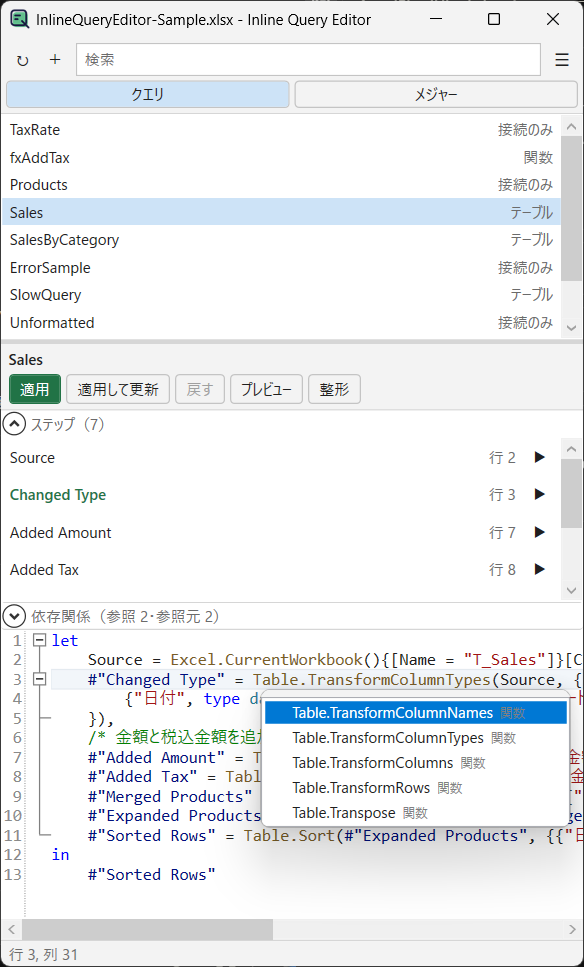
Completion for functions and steps
Suggests standard functions, query names in the workbook and step names. Parameter hints, syntax highlighting and a formatter are included.
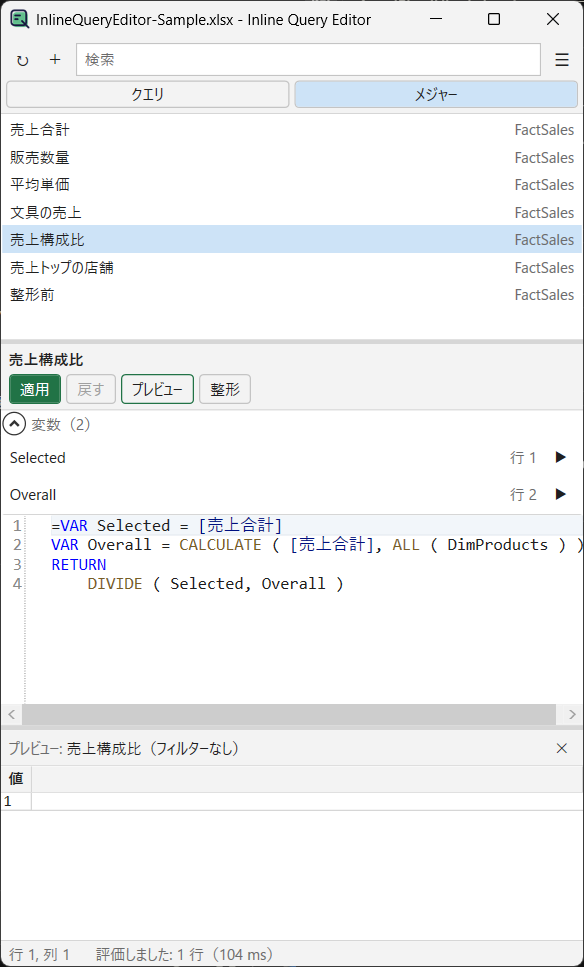
Edit DAX formulas of measures
Pick a Data Model (Power Pivot) measure from the list and edit it. Completion for functions, tables, columns, measures and variables, a formatter, syntax errors and a preview of each variable are included.
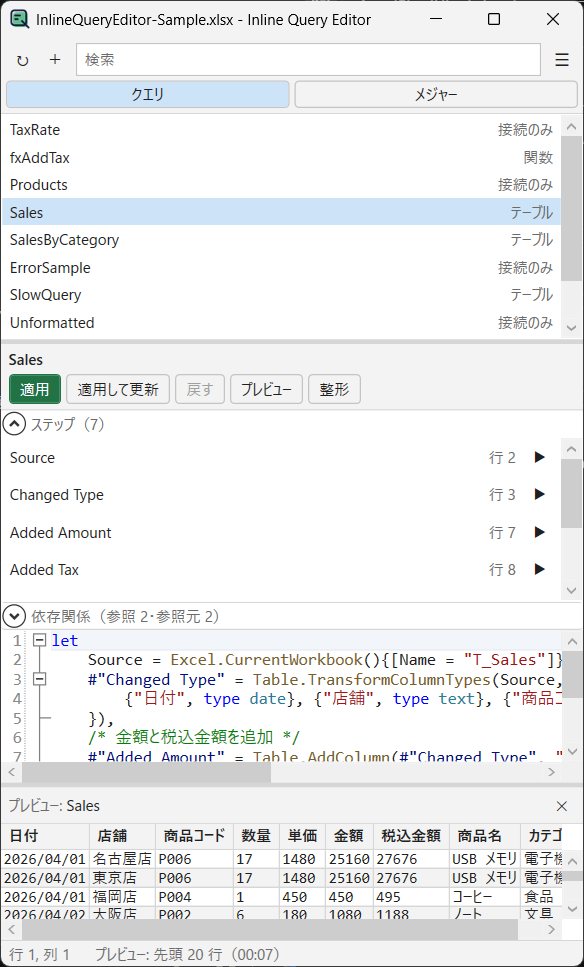
Preview the result of each step
Shows the result up to any step as a table, so you can see exactly where your data changes.
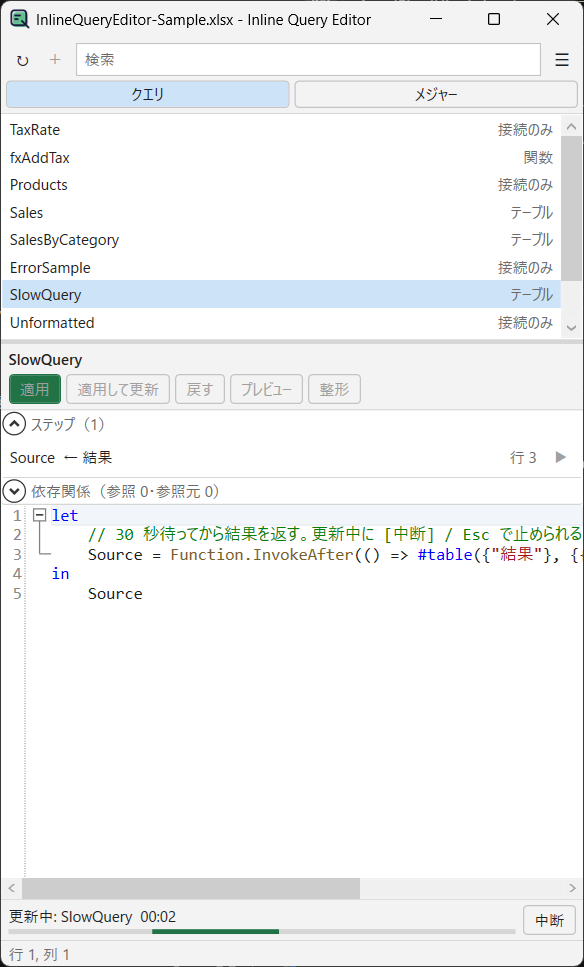
Refresh with progress and cancel
Refresh a single query or all of them. Cancel a long-running refresh with Esc.
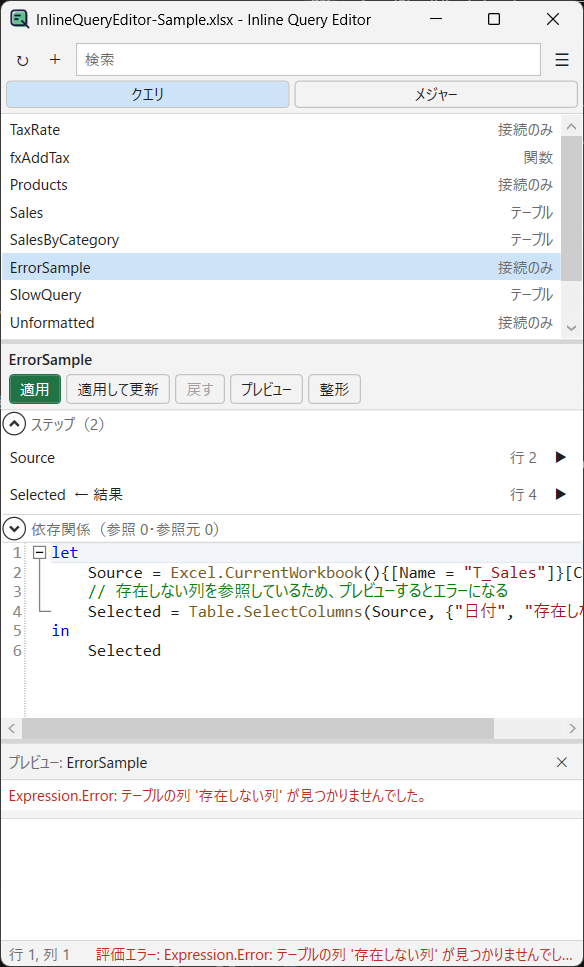
See errors in place
Syntax errors are underlined. Evaluation errors show their message in the preview.
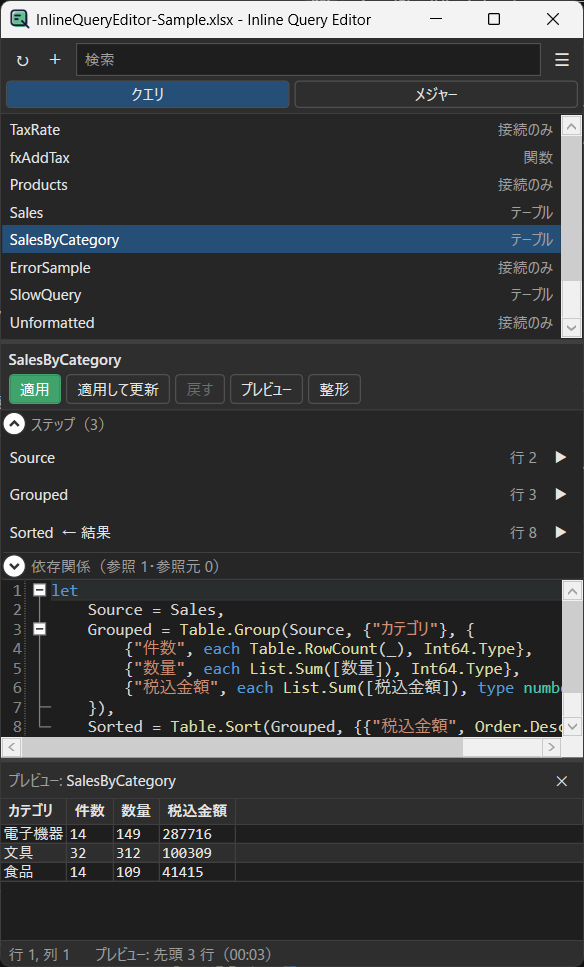
Light and dark themes
Follows the Office theme automatically. You can also switch manually.
Features
When you switch workbooks in Excel, the editor follows. Unsaved edits are kept per workbook.
- List the queries in the workbook and filter them by name
- Edit M code and write it back to the workbook (Ctrl+S)
- Apply and refresh in one step (Ctrl+Shift+S)
- Create, rename, duplicate and delete queries, and change the load destination
- Refresh a single query or all queries, and cancel a running refresh
- Preview the result up to any step
- Show query dependencies (queries used and queries that use it). Renaming a query can update references in other queries too
- Export to and import from
.pqfiles - List the Data Model measures, edit their DAX formulas and write them back (Ctrl+S)
- Create, rename, duplicate and delete measures
- Preview a measure evaluated without filters, or up to any variable. An invalid formula is not written, and the measure stays as it was
- Syntax highlighting, code folding, bracket matching
- Completion (Ctrl+Space) and parameter hints
- M and DAX formatter (Ctrl+Shift+F)
- Syntax error underlines
- Find and replace (Ctrl+F / Ctrl+H)
Get it
The same editor comes in two forms. Both are free.
Standalone app
An app in its own window next to Excel. It connects to the running Excel automatically. No .NET runtime installation is required, and updates come through the Store.
Add-in
An .xll add-in shown in an Excel task pane, opened from the Data tab. Requires the .NET 10 Desktop Runtime. A sample workbook and .pq files for import are included.
Before extracting, open the zip's Properties and check "Unblock". Otherwise Excel blocks the .xll. See README.txt in the zip for the steps.
Some security software may flag the .xll as suspicious. If it is blocked, use the standalone app instead.
How to use
For the standalone app.
- Open a workbook in Excel
- Start "Inline-Query-Editor for Excel" from the Start menu
- Select a query, edit the M code, and press Apply (適用)
- To edit measures, switch the list to Measures (メジャー) with the button above the list
To try it out, use the sample workbook. Open InlineQueryEditor-Sample.xlsx in the samples folder of the add-in zip.
Requirements
| OS | Windows 10 version 1809 or later / Windows 11 (x64 / Arm64) |
|---|---|
| Excel | Excel for desktop: Microsoft 365 / 2024 / 2021 / 2019 (32-bit or 64-bit) |
- Excel is not included and must be installed separately
- Excel for the web and Excel for Mac are not supported
- The user interface is in Japanese only
- This app does not connect to the internet and does not send any data (Privacy Policy)